Energy Monitoring
Sowel includes built-in energy monitoring that tracks your home's electricity consumption and (optionally) your solar production over time. It supports peak / off-peak tariff classification, autoconsumption tracking, and a by-usage breakdown when you instrument dedicated circuits.
The three energy equipment types
Energy monitoring in Sowel is integration-agnostic. Any plugin that reports energy or power data on a device can feed the energy pipeline, as long as the device is bound to one of these three equipment types.
| Equipment type | What it represents | Required device data |
|---|---|---|
main_energy_meter |
Your main grid meter (whole-home import / export) | Cumulative energy (Wh), or a signed grid energy delta per tick |
energy_meter |
A submeter on a dedicated circuit (heat pump, pool, EV charger, ...) | Cumulative energy (Wh) or instantaneous power (W) |
energy_production_meter |
Your solar (or other local production) meter | Cumulative production energy (Wh) |
You can mix and match: a setup with only a main meter is fine, you do not need solar to use the Energy page. Conversely, you can have many submeters without a main meter — you will just lose the "Other" residual on the by-usage view.
Power-only submeters
Cheap zigbee clamps that report only power (W) and not energy (Wh) are supported for submeters. Sowel integrates the power signal locally into a Wh stream attributed to the submeter equipment, with the same per-minute cadence as the main meter. State survives restarts.
How the data flows
Energy meter device (any integration)
  -> Plugin reports `energy` (Wh) or `power` (W)
    -> HistoryWriter writes per-minute points to InfluxDB
      -> EnergyAggregator computes hour / day / month / year cumuls
        -> Energy page renders charts and totals
InfluxDB stores raw points in a short-retention bucket, then automatic downsampling tasks aggregate them into hourly and daily buckets with much longer retention. The Energy page picks the right bucket transparently based on the time range you are looking at.
InfluxDB is automatic
InfluxDB is mandatory and starts with Sowel via Docker Compose. On first launch, Sowel auto-creates the required buckets, downsampling tasks, and energy aggregation tasks. No manual InfluxDB configuration is needed.
Setting up energy monitoring
Step 1: Connect an energy integration
Install a plugin that provides energy meter devices (browse the catalogue from Administration > Plugins) and configure it from Administration > Integrations. Any plugin that surfaces a device exposing energy or power data is eligible.
Step 2: Create the main energy meter equipment
Go to Administration > Equipments and create an equipment:
- Type: Main Energy Meter
- Zone: typically the Home root, or a Utility zone
- Bind to your grid meter device's
energydata
Once bound, Sowel starts writing one energy point per minute to InfluxDB.
Step 3: (Optional) Add a production meter
If you have local production (solar panels typically), create an equipment of type Energy Production Meter and bind it to your production meter device. With both a main meter and a production meter in place, Sowel computes:
- Grid consumption: energy drawn from the grid
- Autoconsumption: energy produced and consumed in the house
- Grid injection: energy produced and pushed to the grid
- Total consumption: grid + autoconsumption
Step 4: (Optional) Configure peak / off-peak tariffs
If your electricity plan splits hours into peak and off-peak, configure the schedule so Sowel can break down your consumption.
Go to Settings > Administration > Energy tariffs:
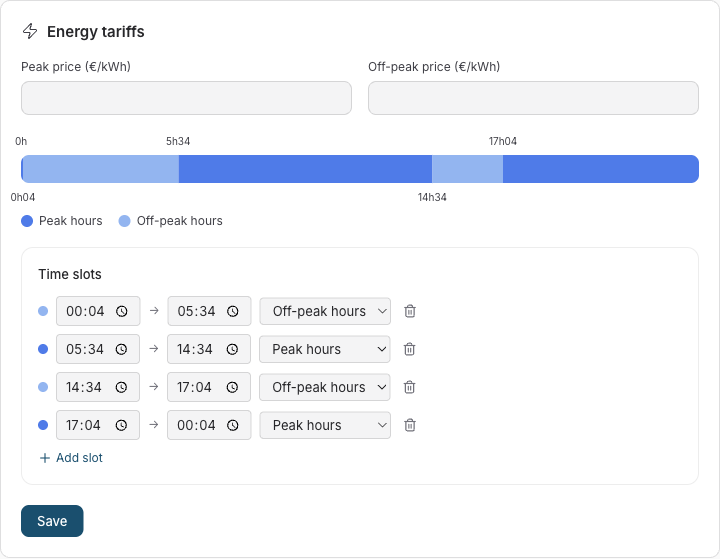
- Optionally enter your peak and off-peak prices per kWh (used for cost views; classification works without them)
- Define your time slots: which hours are peak and which are off-peak
- You can add as many slots as you need to cover the 24 hours of the day
If no tariff is configured, all consumption is classified as peak by default — you simply do not see the split.
Step 5: (Optional) Add submeters for a by-usage breakdown
To know how your main meter's consumption splits across circuits, add an energy_meter equipment for each circuit you instrument.
- Install a zigbee energy clamp, smart plug, or Wi-Fi meter on the dedicated circuit
- Go to Administration > Equipments and create an equipment of type Energy Meter
- Bind it to the device's
energy(Wh) data, or — if your device reports onlypower(W) — to itspowerdata: Sowel integrates the power signal into a Wh stream automatically
Once at least one submeter is configured, the By usage toggle appears on the Consumption page. The toggle is hidden when no submeter exists.
Using the Energy section
The sidebar groups the energy views under Energy:
- Live: instant flow between grid, production, and house consumption
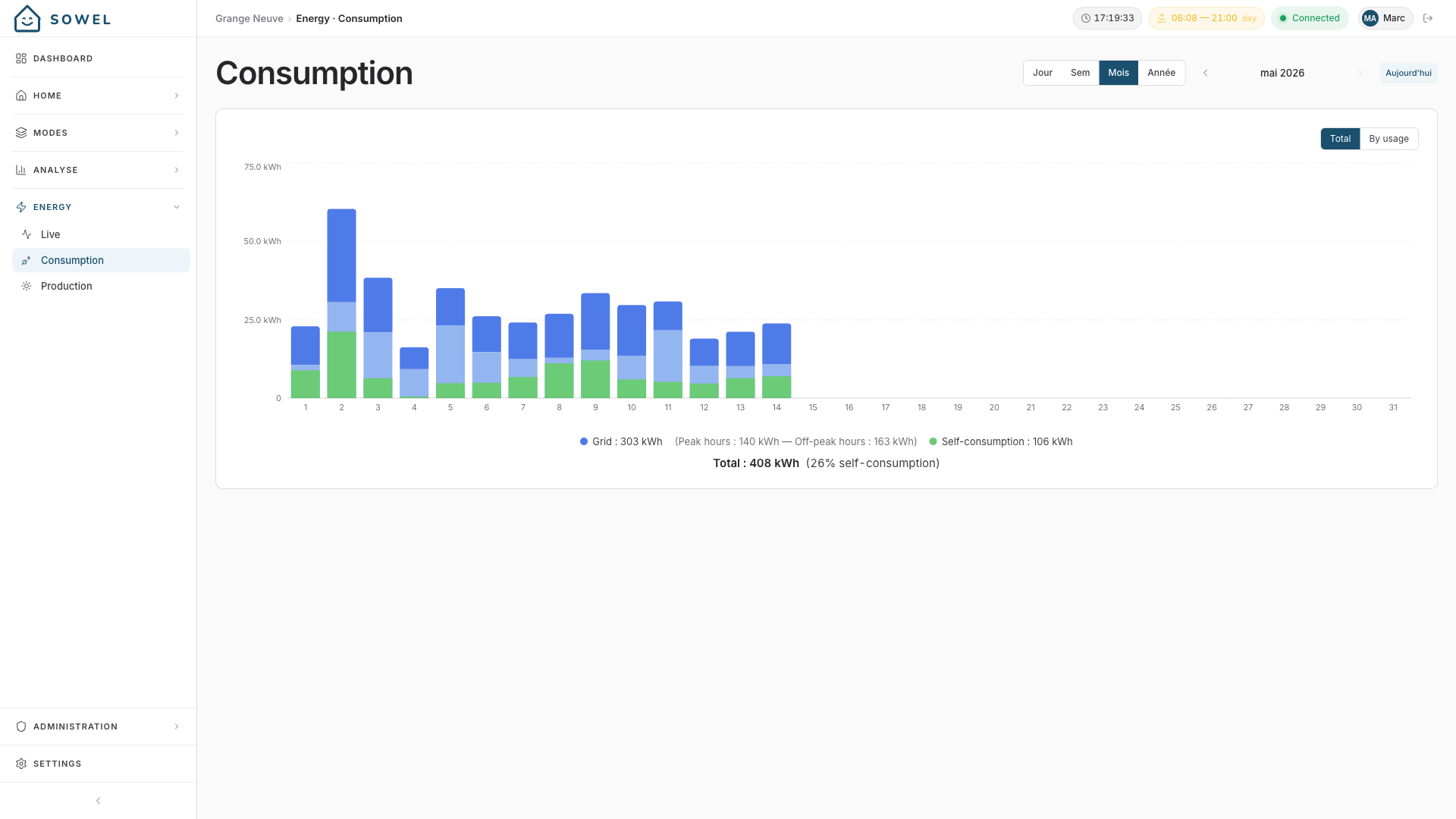
- Consumption: historical consumption with peak / off-peak split and self-consumption overlay
- Production: historical solar production with autoconsumption / injection split
Live view
The Live view shows what is happening right now — power values updated in real time via WebSocket.
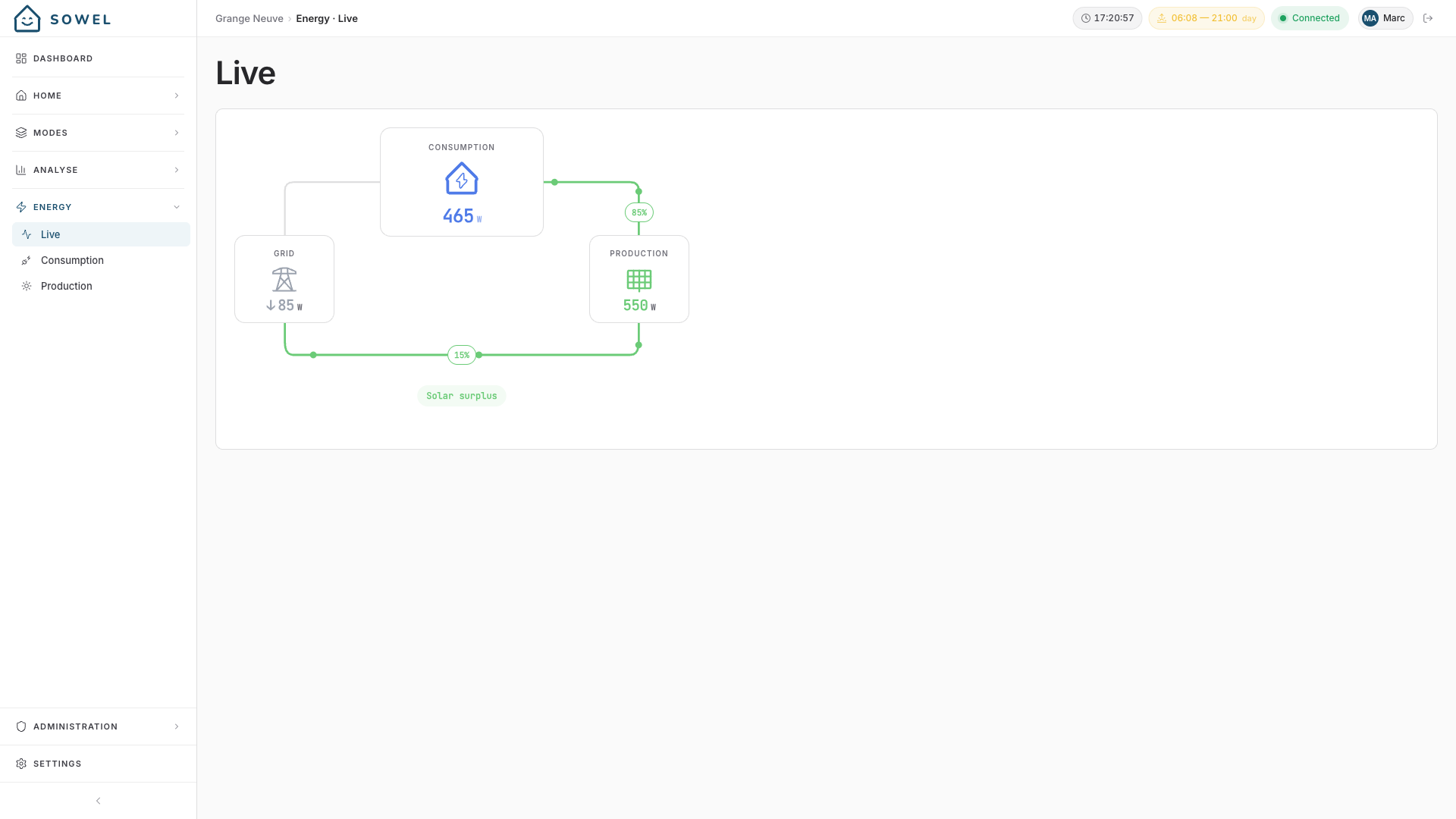
The diagram shows three boxes (Grid, Consumption, Production) with arrows indicating the direction of energy flow. When solar production exceeds in-house consumption, a "Solar surplus" indicator appears, and the share of solar going to the grid versus to the house is shown on the arrows.
Tiles are hidden when their underlying equipment is not configured: with no production meter, only Grid and Consumption are shown.
A banner appears above the diagram when a reading can no longer be trusted, one line per source and each with its own age. It says one of three things:
- "no reading received for 12 min": nothing has arrived from that meter for a while. The window is ten minutes, which is twice the slowest reporting cadence any supported source uses, so a meter polled every five minutes never raises this while it is working.
- "reading stuck on the same value for 3 h": readings keep arriving, but the value inside them stopped moving. That is a source still talking without measuring, and no arrival time can reveal it. Sowel compares the value as stored, at full precision, never the rounded figure drawn on the diagram: production shown as 2.4 kW may be swinging by 49 W without the display changing at all. Two exceptions are left alone: a reading of exactly zero, which a production meter genuinely holds all night, and anything under an hour, so an inverter sitting on its clipping plateau through a clear noon says nothing.
- "no connection for 20 min": the meter's device has dropped off the network altogether.
Only the power readings the diagram draws are watched, so a meter that is merely late on a voltage or energy reading raises nothing here.
Consumption view
Pick a period (Day, Week, Month, Year) and navigate dates with the arrows. The chart renders bars for each time bucket of the selected period.
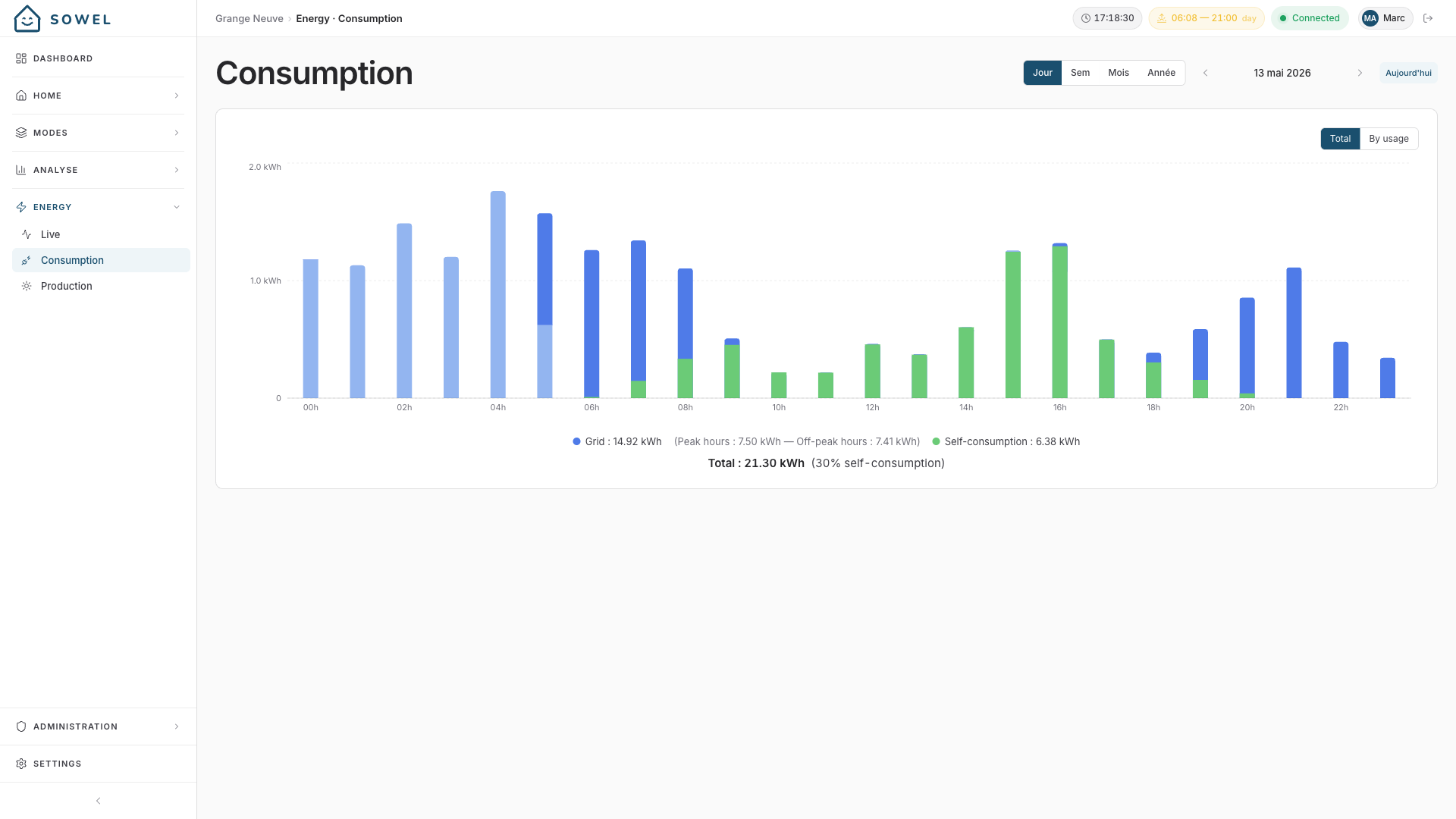
Color coding on the Total chart:
| Color | Meaning |
|---|---|
| Dark blue | Peak-hours grid consumption |
| Light blue | Off-peak-hours grid consumption |
| Green | Autoconsumption (only when a production meter is set up) |
Below the chart, totals are shown in kWh: grid (split into peak / off-peak), autoconsumption, and total (with the self-consumption share as a percentage).
Wh / € unit toggle
A Wh / € segmented toggle sits next to the period selector at the top of the page. In € mode, every kWh figure on the bar chart (Y axis, bar height, tooltip) and on the totals card is replaced by the corresponding cost in euros, computed from the prices you entered in Settings > Energy tariffs. The toggle is disabled — with a tooltip pointing back to the tariff settings — until you set at least one of the HP / HC prices to a non-zero value.
Pricing is applied at read time, so changing your tariff (after a contract renegotiation, for example) re-values past consumption with the new prices. Autoconsumption has no billed cost and is therefore hidden from the chart in € mode.
Total / By usage toggle
When at least one submeter is configured, a Total / By usage toggle appears above the chart. The By usage view replaces the peak / off-peak split with one stack per submeter, plus an Other stack for the residual that the main meter saw but no submeter accounted for.
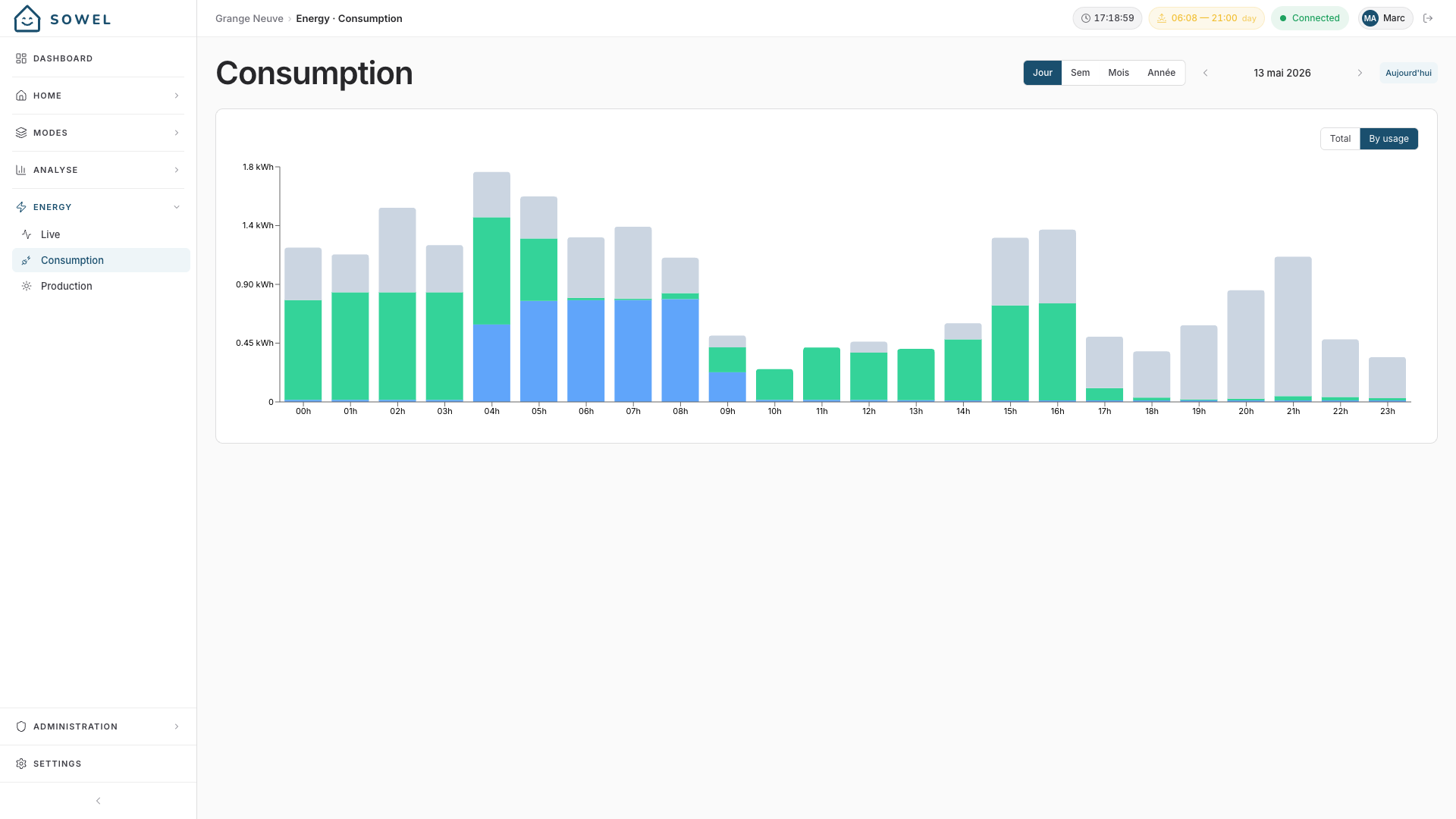
Submeters use a deterministic color palette so the same circuit keeps the same color across days and views. The "Other" stack is clamped at zero, so a submeter that briefly overshoots the main meter (due to sampling skew) cannot make it negative.
When one meter is fed from another
Switchboards nest: a gîte measured by one clamp, and its water heater — fed from that same board — by a second one. Both are submeters, so without help the heater's kilowatt-hours would be counted twice, once in each stack, and the "Other" residual would lose exactly as much.
Say so on the inner meter: open its equipment page and pick, under Already counted by, the meter it is fed from. The breakdown then shows the outer meter net of the inner one — the gîte minus its water heater — while the inner one keeps its whole measurement, and the two stacks stop overlapping. Its legend says "net of its submeters" so the slice can be told apart from the meter's own card, which keeps showing what its clamp measures.
Chains work: with a main board feeding a gîte feeding a water heater, each level is shown net of the one directly inside it, and the three still add up to the board.
The same subtraction applies to the live breakdown on this page, so the donut and the daily stacks tell one story rather than two.
Two things worth knowing: deleting the outer meter clears the declaration on the ones inside it, which starts counting them twice again, so re-declare their new parent if the wiring still nests; and the equipment cards always keep showing what each clamp measures, since a card contradicting its own sensor would be worse than the overlap it fixes.
When a meter is fed by a separate supply
The opposite topology exists too: a clamp on a circuit fed by another utility meter — an EV charging socket on a second subscription, say. Its kilowatt-hours never flow through your main meter, so counting it in the breakdown invents consumption the main meter never saw, eats the "Other" residual down to zero, and prices another supply's energy at your main tariff.
Say so on the meter: open its equipment page and tick Fed by a separate supply. The meter then leaves the by-usage partition and the live donut, and shows up apart — its own group under both, in kWh only, never in € (Sowel does not know the other supply's tariff). Its card, its history and its charts are untouched: the measurement is as real as any other, it just belongs to a different balance.
A separate-supply meter cannot be picked under Already counted by — nothing the partition renders can be "inside" a meter on another supply.
Totals widgets (peak / off-peak, autoconsumption) stay unchanged when you toggle modes.
Longer periods
Switching to Month or Year keeps the same colors and totals, but each bar represents a day (Month view) or a month (Year view).
Production view
The Production page is the home of everything about your panels. It shows the production history, split between autoconsumption (produced and consumed locally) and grid injection, with totals for the day, month or year.
Since v1.57.0 it also carries two panels, both driven by your own installation rather than by a generic model:
- Forecast, an hourly expected-production curve out to five days, learned from your history. It needs the
weather-forecastplugin at 2.3.0 or later, and about six weeks of production before the model settles. Before that, Sowel shows a provisional clear-sky estimate and says so. - Health, which tells you when the panels stop performing against what your own history says they should. Declaring a new array, or changing the peak power, re-estimates the gain from the days that follow rather than waiting for the window to drift.
Both are described at length in Following your solar production.
Reading the accuracy figure. Under the two daily totals the forecast panel states how far it has been off: ± 1.15 kWh (5.2%) over 9 complete days, forecast a day ahead. It is the error on the energy of a day, averaged over the finished days in the window, and the percentage is that error as a share of what those days actually produced. Only complete days count: a day the meter did not cover throughout is dropped rather than blamed on the model.
The running day gets its own line, Today so far, comparing what was forecast the day before for the hours already elapsed with what was measured over those same hours. It answers whether today is on track, which the multi-day average cannot.
Before v1.68.0 this figure was a mean of hourly power errors in watts. Roughly half of any window is night, where nothing is expected and nothing is produced, so those perfect hours halved the number, and it improved on its own every autumn as the nights lengthened. An energy total cannot be diluted that way.
The buttons above the chart choose how much history it draws: one day, three days, a week, a month or three months. They are a zoom on the curve only. The accuracy figure always looks back at least a week, so zooming in to inspect a single day does not leave it without enough finished days to say anything.
Surplus arbitration
When you have solar production, several automations may want the same surplus at the same time (pre-cooling the house, running the pool pump, heating water). Left uncoordinated they fight over it: each switches on when it sees export, together they overshoot, the export collapses, and everything switches off again. The surplus arbiter is the single referee that hands the surplus out in an order you decide.
It is off by default and changes nothing until you enable it. On a home without solar production it stays hidden.
Declaring a flexible load
On an equipment whose type is a controllable load (pool pump, water heater, water valve, heater or thermostat), open its page and turn on Energy management. You set:
- Nominal power — pre-filled from the equipment's own measurement when a clamp is bound.
- Tolerated import (W) — how much grid import this load will accept to start on a partial surplus. The arbiter engages it once the surplus covers "nominal power + margin − tolerated import". At
0(default) it waits for a full surplus; raising it makes the load start sooner, accepting to buy a little grid. It is the load's comfort / economy dial, set once here and honoured by whatever automation drives it. - Minimum on / off — how long it must stay on once started, and rest before restarting (protects a compressor from short-cycling).
- Shutdown delay (min), optional: how long this load keeps drawing after the arbiter releases it, before it actually stops (for example a heat-pump water heater whose pump runs about 30 min after its solar contact opens). Leave it empty for a load that stops promptly; declare it for an inertial one so the arbiter does not flag its expected, slow shutdown as "did not turn off on demand". It widens that grace for this load only and never slows the arbiter's reaction for the others.
How the arbiter treats the load is derived from its type, so there is nothing to pick:
- a relay whose on/off is a command (pool pump, water heater) can be switched off and run later on the surplus, and an unexpected on/off is read as you taking manual control;
- a self-regulating load (a thermostat or air conditioner) has its normal operation only complemented by the surplus, and the arbiter does not read its own on/off cycling as an action from you.
An equipment type with no energy behaviour (a plain light or a generic switch) cannot be declared a flexible load.
Enabling this only declares the load. Nothing acts on it until the arbiter itself is enabled.
Enabling the arbiter and setting priority
Go to Settings > Administration > Energy, enable Surplus arbiter, and order your flexible loads in the priority list. The list is read both ways: the surplus is offered top-down, and when it runs short the bottom load is the first to step back. Advanced timing thresholds live behind a fold with sensible defaults.
Reading it on the Live page
The Energy > Live page gains a surplus-arbitration panel with three parts:
- a roster listing every flexible load in your priority order, with its state and its figures;
- a timeline with one lane per flexible load: green where it held the surplus, a red marker (with the reason on hover) where it was stepped back;
- a decision journal in plain language, so nothing the arbiter does is a mystery.
The roster answers the two questions you actually have in front of it: who has the surplus, and what is holding up the next one.
| Column | What it says |
|---|---|
| Gap | What a waiting load is still short of, in watts. When nothing is missing it says so in words instead: covered for a load that already has the surplus, not requested for one no automation has asked for, or the reason it is held back (confirming, cooling down). |
| Load | What the load draws: measured while it runs, its rating while it rests. |
| Tolerates | The grid import it accepts, from its energy management settings. |
| Need | The surplus it takes to start it: load + engage margin - tolerated import. The margin is stated under the table, so you can check the arithmetic on any row. A load tolerating more import than it draws needs no surplus at all and reads 0 W. |
The number in front of each name is its rank in your priority list. On a narrow screen the table keeps the equipment, its state and the gap, and drops the rest.
At night the arbiter goes dormant: there is no surplus to hand out, every load reads at rest, and the panel says when it resumes.
You always win
If you switch a flexible load on or off yourself — in the app, with a physical button, or the switch on the wall — the arbiter steps back and leaves it alone for two hours. Its equipment page shows Manual until HH:MM with a resume control now button if you want to hand it back sooner.
Data pipeline
Understanding how data flows helps with troubleshooting:
Plugin reports energy or power
  -> per-minute energy points written to InfluxDB "sowel" bucket  (7-day retention)
    -> sowel-energy-sum-hourly task
      -> "sowel-energy-hourly" bucket  (2-year retention)
        -> sowel-energy-sum-daily task
          -> "sowel-energy-daily" bucket  (10-year retention)
The Energy page chooses the bucket based on the period:
- Day view for today and recent days: queries the raw bucket for real-time accuracy
- Day view for older days: queries the hourly bucket
- Month / Year: queries the daily bucket for fast, long-range queries
The aggregator also keeps in-memory cumuls (hour, day, month, year) that the Live view and Home page widgets read directly, refreshed on every new energy tick.
Troubleshooting
No data appears on the Energy page
- Check that the integration providing your energy meter device is connected (green indicator in Administration > Integrations)
- Verify the equipment exists (Main Energy Meter and/or Energy Production Meter) and is bound to a device that actually emits
energydata - Wait for at least one polling / push cycle — exact frequency depends on the plugin, but typically a few minutes at most
- Check Settings > System > Logs for messages from the
history-writerorenergy-aggregatormodules
Peak / off-peak shows everything as peak
This means no tariff schedule is configured. Go to Settings > Administration > Energy tariffs and define your slots.
Old data is missing
Data older than 7 days lives only in the downsampled hourly and daily buckets. If those buckets are empty, the downsampling tasks have not run yet (they run once per hour and once per day). Check that InfluxDB is running and reachable, and inspect the logs of the history-writer module on startup — Sowel logs whether the tasks were created or already existed.
By usage view shows a large "Other" residual
This means your submeters do not cover most of the main meter's consumption — which is normal: the main meter sees everything in the house, while submeters typically cover specific high-power circuits. The residual is "Other circuits".
If the residual is negative (clamped to zero in the chart), one of your submeters is reporting more than the main meter sees — usually a clamp wired backwards or a calibration mismatch. The integrator clamps negative power deltas at zero and logs a WARN once per occurrence.