Equipments
Equipments are the core concept in Sowel. An equipment is a functional unit that you interact with daily -- "Living Room Spots", "Bedroom Shutters", "Kitchen Sensor".
A Device is what's on the network, an Equipment is what's in the room. You never think about the Zigbee dimmer module installed behind the wall -- you think about your living room lights.
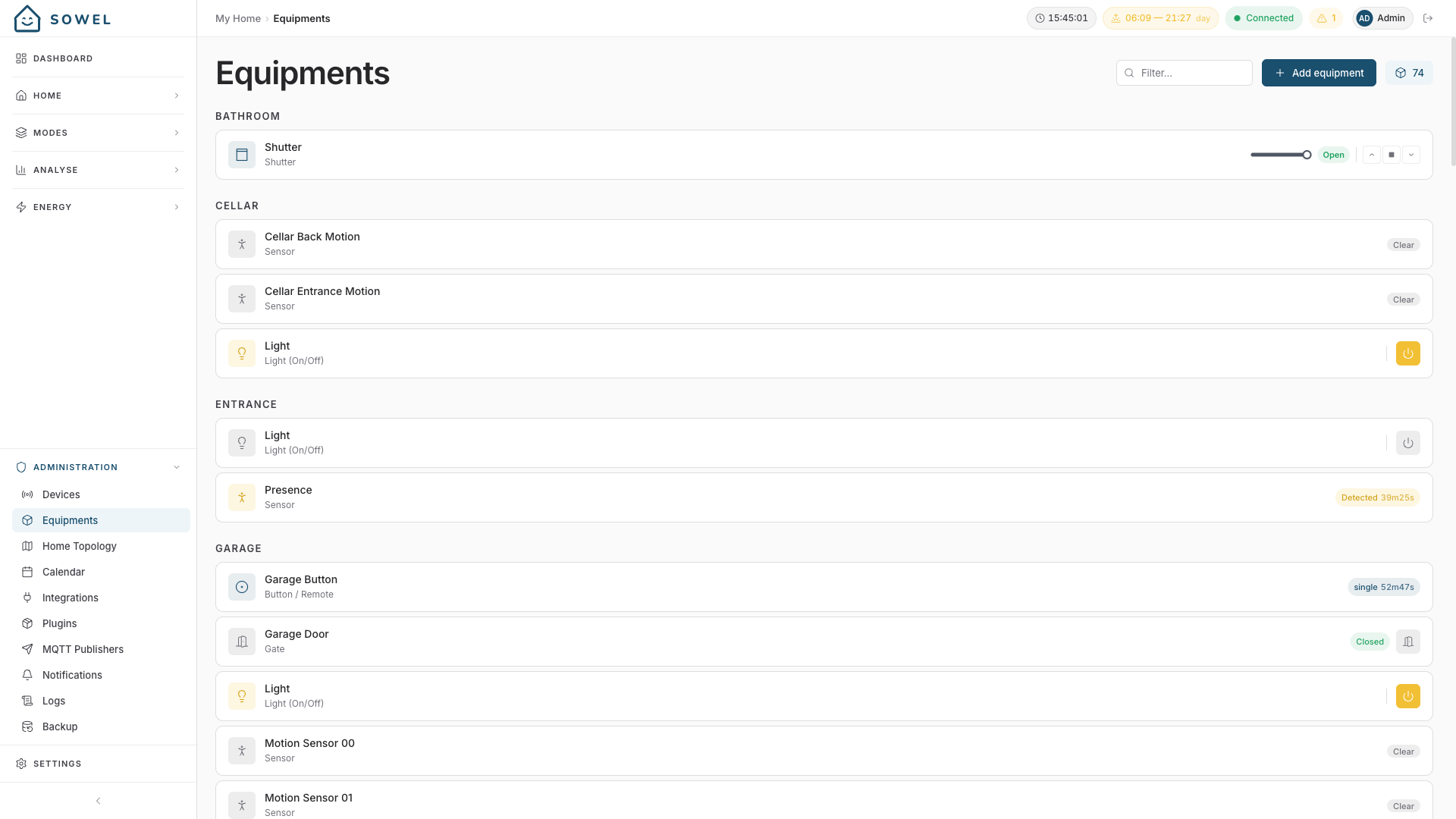
Creating an equipment
Go to Administration > Equipments and click Add Equipment.
Step 1: Basic information
| Field | Required | Description |
|---|---|---|
| Type | Yes | The equipment category (see Equipment types below) |
| Name | Yes | A meaningful name like "Living Room Spots" or "Kitchen Sensor" |
| Zone | Yes | Which room or area this equipment belongs to |
| Description | No | A note for yourself |
Type cannot be changed after creation
Choose the type carefully -- it determines which devices are compatible and how the equipment is displayed.
Step 2: Select devices
Click Next: Select devices to see a list of compatible devices. Sowel filters devices automatically based on the equipment type.
- Select one or more devices
- Click Create
That's it. Sowel automatically creates all the data and command bindings. Every value the device exposes (temperature, humidity, battery...) becomes immediately available on the equipment.
You can skip device selection
You can create an equipment without a device and bind one later from the detail page.
Multi-device binding
A single equipment can bind to multiple devices. This is one of Sowel's most powerful features.
Example: Three separate IKEA dimmer modules power the spotlights in your living room. Create one "Living Room Spots" equipment and bind all three. A single toggle turns all three on. A single slider dims all three.
Equipment types
Sowel ships a closed catalogue of equipment types. Every equipment in your home is one of these, and the type drives both the UI controls and the expected data shape.
Lights
| Type | Controls | Expected data |
|---|---|---|
| Light (On/Off) | Toggle ON/OFF | state (on/off) |
| Light (Dimmable) | Toggle + brightness slider | state, brightness |
| Light (Color) | Toggle + brightness + color controls | state, brightness, color, color temperature |
Shutters
| Type | Controls | Expected data |
|---|---|---|
| Shutter | Open / Stop / Close + position display | position (0% = closed, 100% = open) |
| Awning | Retract / Stop / Extend + position display | position (0% = retracted, 100% = deployed) |
Awnings share the shutter control surface (same position binding, same OPEN/STOP/CLOSE buttons) but speak the awning vocabulary throughout the UI: Déployé / Rétracté state pills, Déployer / Rétracter button labels, dedicated "Stores bannes" group in the zone view. Mapping: RF-up = retract = position 0, RF-down = deploy = position 100. See the somfy-rts plugin for an integration example that handles both shutter and awning families against the same Somfy RTS hardware.
Climate
| Type | Controls | Expected data |
|---|---|---|
| Thermostat | Temperature display, setpoint +/-, power on/off, mode | core: current temperature, setpoint, run state, power, operating mode; then whatever else the device offers, as extras |
| Heater | Comfort / Eco toggle | relay state (fil pilote: ON = eco, OFF = comfort) |
| Water Heater | On/Off toggle, optional dedicated Solar toggle | on/off relay state, optional solar-channel state, optional water temperature (display only), optional power/energy |
Thermostat covers air conditioning, pellet stoves, and heat pumps. Heater covers individual electric heaters wired through a fil-pilote relay. Water Heater (chauffe-eau / cumulus) is an on/off relay for a hot-water tank: auto-binds the on/off channel (and its power/energy when the relay meters them); a water-temperature probe can be bound optionally and is shown but kept out of the room temperature average. Setpoint control is intentionally out of scope (that would be a thermostat).
A thermostat has a core and extras. The core is the small set every thermostat shares and every Sowel surface relies on: temperature, setpoint, state, power, operationMode, plus outsideTemperature when the unit carries an outdoor probe. Sowel recognises a device as a thermostat when it can be given a setpoint, whatever the plugin calls the key. Everything else the device offers (a fan speed, an ioniser, a pellet stove's programme and alarm reset, a vendor setting Sowel has never met) is bound too, but as an extra: the card leads with the core and lists the extras in a secondary section, one control per bound command (buttons for a choice, a toggle for an on/off, an action button for a one-shot, a stepper for a number) and one chip per reading. Extras vary from one thermostat to the next and never define the type. The operating mode uses a common vocabulary: auto, heat, cool, dry, fan, and off on units whose mode carries the stop.
On a thermostat, the on/off state reported by the device itself is bound under the state alias, the same on/off alias relay-style equipments use. This matters on a submetered thermostat (a heat pump measured by a clamp): there the power alias carries the live wattage, and the wattage cannot tell the UI whether the unit is on or in standby. If your thermostat card never shows as ON, open the equipment's missing-bindings panel and add the device's power reading: it is offered as state. Legacy thermostats with the boolean bound directly under power keep working unchanged.
A water heater (and a switch) can also carry a dedicated solar on/off channel, independent from the main on/off: a second contact (e.g. a SONOFF MINI-ZBD Zigbee dry-contact relay driving the photovoltaic input of a heat-pump water heater). It is bound explicitly under the solar role, distinct from the appliance's normal operation. On a water heater left on permanent mains, only the Solar toggle appears; the card shows one toggle per bound channel. The solar channel is the actuator a solar-surplus recipe drives through the energy arbiter; the arbitration logic itself stays in the recipe.
Access
| Type | Controls | Expected data |
|---|---|---|
| Gate | Open/Close button + state indicator | gate state (open, closed, opening, closing) |
Dashboard icon
You can choose a specific icon for gates on the dashboard: standard gate, sliding gate, or garage door.
A gate can be driven by any on/off relay — a Zigbee dry-contact module (e.g. SONOFF MINI-ZBD), a LoRa relay channel, or a Somfy RTS remote — and the command button triggers it as a momentary action. Configure the pulse behavior (inching / auto-off) on the device itself. Bind a door contact sensor (e.g. SONOFF SNZB-04P) to the same equipment to get the open/closed state; without one the state shows as unknown.
Sensors
| Type | Controls / Display | Expected data |
|---|---|---|
| Sensor | Read-only multi-value display, auto-adapted | temperature, humidity, pressure, CO2, VOC, luminosity, noise, battery, motion, contact, water leak, smoke |
| Weather Station | Multi-value display | temperature (with today's measured min/max shown underneath), humidity, pressure, rain, wind, noise, battery |
| Weather Forecast | Day-by-day forecast cards (J+1 to J+5) | weather condition, temperature min/max, rain probability, wind gusts |
| Button / Remote | Not directly controlled (used as trigger) | action events (single press, double press, long press) |
The generic Sensor type adapts its display automatically. Boolean sensors (motion, contact, water leak, smoke) get appropriate badges; numeric sensors get values with the right unit and icon.
Buttons are inputs only — bind them to a recipe action or a mode toggle through Administration > Buttons.
Energy
| Type | Controls / Display | Expected data | Notes |
|---|---|---|---|
| Energy Meter | Power (W) and daily energy (Wh/kWh) | cumulative energy (Wh) | Submeter for a circuit (heat pump, pool, EV charger). Feeds the by-usage breakdown. |
| Main Energy Meter | Same + drives the Energy monitoring page | power, energy (with HP/HC tariff classification) | One allowed per system. |
| Energy Production Meter | Production display + autoconsumption calculation | production power, cumulative production | One allowed per system. |
Media
| Type | Controls | Expected data |
|---|---|---|
| Media Player | Power on/off, volume, mute, input source | power state, volume level, mute, current input, picture mode |
Appliances
| Type | Controls / Display | Expected data |
|---|---|---|
| Appliance | Read-only status display | power state, operating state (ready/running/paused), current phase, progress (%), remaining time, energy used |
End-of-cycle notification
Use a state-watch recipe to get notified when the operating state changes from running to ready.
Water
| Type | Controls | Expected data |
|---|---|---|
| Water Valve | Toggle ON/OFF, "Water for X min" timed action (firmware-side auto-close) | state, flow rate (m³/h), battery, device status (normal / water shortage / leak) |
Designed for devices like the SONOFF SWV. Standard aliases: state, flow, battery, status, duration, cycles, interval, capacity, autoCloseOnShortage. Only state is required — the UI adapts to whichever are bound. Zones aggregate open/total valves and sum live flow across the tree.
Pool
| Type | Controls | Expected data |
|---|---|---|
| Pool Pump | Toggle ON/OFF + daily runtime display | pump state, daily runtime |
| Pool Cover | Open / Stop / Close + position display | cover position (0% = closed, 100% = open) |
| Pool Heat Pump | Power on/off, target water temperature | water temperature, target setpoint, power state |
Pool equipments work with the Pool Pump Schedule recipe (daily runtime tied to water temperature) and feed the pool widgets on the dashboard.
Cameras
| Type | Controls | Expected data |
|---|---|---|
| Camera | Live view, snapshot refresh, monitoring on/off, spot light, siren | snapshot, live stream, monitoring state, spot light mode, last detection |
The Camera type is vendor-agnostic — any camera plugin that reports the right data can bind to it. None of these are required; the detail page only shows the controls the bound camera actually offers.
Every feature is opt-in, per camera
Whether a given camera shows a live stream, lets you toggle monitoring, or reports detections is entirely down to which data/orders you bind to it — the same binding mechanism used by every other equipment type. Creating a camera from a discovered device auto-binds the snapshot, live stream and monitoring toggle; the spot light control, siren, and detection events are opt-in — add them later from the equipment's detail page ("Add binding") if you want them. A feature you don't bind is unreachable even via the API, not just hidden — this is a deliberate privacy control, not only a display preference.
Live view and snapshots are proxied through Sowel's backend — your browser never talks to the camera directly, and never learns its network address.
Other
| Type | Controls | Expected data |
|---|---|---|
| Switch / Plug | Toggle ON/OFF + state badge | state (on/off); optional power/energy |
A metering plug (e.g. SONOFF S60ZBTPF) is a Switch / Plug that also
reports power/energy. Bind it as a switch and Sowel automatically captures
the metering: the card shows live power next to the toggle, the consumption
feeds the energy dashboard (history, HP/HC), and the plug appears in the live
submeter breakdown — while keeping its ON/OFF control. A basic relay with no
metering data behaves as a plain switch.
Managing equipments
Detail page
Click on any equipment to see its detail page:
- Live data -- all values updated in real-time via WebSocket
- Controls -- interactive controls adapted to the equipment type
- History chart -- data trends over time (if historization is enabled)
- Configuration -- bound devices, data bindings, order bindings
Changing the device
From the detail page, click Change device to rebind the equipment to different devices. Sowel removes all existing bindings and recreates them automatically from the new device(s).
Warning
This rebuilds the bindings from scratch, so custom aliases and per-binding historization settings are lost. To pick up new values without losing them, use Add missing bindings below.
Adding missing bindings
A plugin update can start publishing values a device did not report before. Those values reach the device, but an equipment bound before they existed does not pick them up on its own.
Open Configuration > Bindings on the detail page. When something is missing, Sowel says so and offers Review:
- every missing value is listed, checked by default
- uncheck anything you do not want, then confirm
- values that would be recorded in history are marked, and the total is shown before you confirm
Nothing is added until you confirm, so a value you removed on purpose only comes back if you ask for it. On a multi-channel device, only the channel this equipment already uses is offered.
Historization
Each data value is historized to InfluxDB by default based on its category (temperature, humidity, power...). From the detail page, you can override this per binding:
| Setting | Effect |
|---|---|
| Default | Follows the category rule |
| Force ON | Always historize this value |
| Force OFF | Never historize this value |
Timed command
An equipment can be told to act now and undo it after a delay: open the gate for a quarter of an hour, run the outside light for half an hour, water for twenty minutes. The engine holds the deadline, so a restart or a power cut does not lose it, and a deadline that passed while Sowel was down is honoured when it comes back.
Enable it from the equipment page, under Timed command. It is off by default. You choose the command, the command that undoes it, and the duration. On a sliding gate driven by a single impulse, the two commands are the same one and the panel says so.
The panel appears only on an equipment that reports a state for that command. Without one, ending the window by hand would go unnoticed and the deadline would act on an equipment that has moved since, which on an impulse gate means re-opening what you just closed.
Once enabled, the command shows up in two places:
- On the Home view, next to the equipment on its row, with the remaining time while a window is open.
- On the Dashboard, as a tile you pin beside the ordinary one, so "open" and "open for fifteen minutes" stay two different buttons.
Pressing the tile again while the window is open gives it more time rather than acting twice. Cancelling sends the closing command straight away.
Steps: each press asks for longer
One duration answers "not yet" but never "how much longer". Tick Steps under the timed command and pick the lengths a press walks through — a quarter of an hour, half, a full one, say. Then:
- the first press acts and starts the shortest length;
- each further press moves to the next length, counted from that moment, and sends nothing;
- a press past the last one stops the countdown and leaves the equipment exactly as it is — the gate stays open, and nothing will close it.
That last press is deliberately not the same thing as cancelling: cancelling sends the closing command, stopping the countdown does not. Both are on the tile, side by side.
Two to six steps, shortest first. The first one is the duration, so the duration selector follows it rather than claiming a length of its own. Editing the steps while a window is running does not disturb it: the window keeps its own deadline and the next press picks up from the nearest step.
A contact that only certifies one direction
A gate's contact usually proves it is closed and only suggests it is open. If you close the gate by hand without the contact seeing it, the window keeps running and will re-open the gate at the deadline. End the window from Sowel rather than by hand when that matters.
Disabling an equipment
A disabled equipment behaves as if it weren't there for the engine, while staying visible in the admin UI:
| Where | Disabled equipment |
|---|---|
| Home view | Hidden |
| Zone aggregation | Excluded |
| Recipes | Not triggered |
| Mode impacts | Skipped |
| Administration > Equipments | Still visible and editable |
Deleting an equipment
Deleting removes the equipment from Sowel. The underlying devices are not affected -- they remain available for new equipments.
Warning
Deleting an equipment also removes any recipe instances and mode impacts that reference it.