Recipes
Recipes are Sowel's answer to home automation without scripting. Each recipe is a reusable automation template: a thoughtful, road-tested pattern -- "Motion Light", "Presence Heater", "Pool Pump Schedule" -- that you drop onto a zone, fill in a few values, and let run.
You don't write code. You don't wire flows. You pick a recipe, configure its slots, and it works.
What a recipe is
A recipe has two parts:
- A definition -- the template, written once by a recipe author and shipped as a plugin. It declares typed parameter slots (zone, equipments, durations, time windows, ...) and the behaviour to run when those slots are filled.
- An instance -- your application of the template. Each instance runs independently, with its own parameters and its own state.
You can have multiple instances of the same recipe. The same Motion Light pattern can run independently in your kitchen, your hallway, and your stairwell -- each with its own brightness setpoints and timeouts.
A recipe instance is more than a script
Behind the scenes, a recipe instance is a small running program that listens to the event bus, keeps state across restarts, and reacts in real time. You don't need to know any of that to use it.
The catalogue
Sowel ships several recipes through the official plugin registry. New ones land regularly.
| Recipe | What it does |
|---|---|
| Motion Light | Turns lights on for a fixed duration when motion is detected |
| Motion Light (Dimmable) | Same, with brightness that adapts to time of day (3 brightness slots: day / evening / night) |
| Switch Light | Lights follow manual button presses -- toggle on/off, with optional max-on failsafe |
| State-Triggered Light | Turns lights on when a watched equipment hits a target state (e.g. gate opens at night) |
| Presence Heater | Heats a room only when occupied, with day/evening/night setpoints and an away setback |
| Presence Thermostat | Same idea, for thermostats with a writable target temperature |
| Auto Watering | Schedules irrigation by zone, with rain skip and weather-aware reduction |
| Freecooling | Opens shutters or windows when outside is cooler than inside (and no rain in forecast) |
| Pool Pump Schedule | Runs the pool pump for a daily duration tied to water temperature |
| State Watch | Monitors a data point and raises an alarm when it stays in a watched state too long |
Browse the full list in Administration > Plugins > Recipe.
Applying a recipe
Go to Administration > Recipes and click Add Recipe.
Step 1: Pick a pattern
The catalogue shows everything installed locally. Each card displays the recipe name, what it does, and the parameters it needs.
Step 2: Fill the slots
Slots are typed and validated. Depending on the recipe, you might be asked for:
| Slot type | Example |
|---|---|
zone |
The room or area the recipe applies to |
equipment |
One or more equipments (filtered by required type) |
duration |
How long lights stay on after motion (e.g. 2m, 15m) |
time |
A time of day (e.g. sunset, 22:00) |
number |
A brightness, a temperature, a threshold |
boolean |
An on/off option |
Sowel only shows you devices and equipments that are compatible with the slot. You can't bind a thermostat to a "lights" slot.
Most slots are pre-validated
If a slot looks empty or wrong, the Save button stays disabled and the recipe explains what's missing.
Step 3: Save and let it run
The instance starts as soon as you save. Toggle it on/off from the recipe list anytime. Open the instance to see its log -- a per-instance trace of what it has done and why.
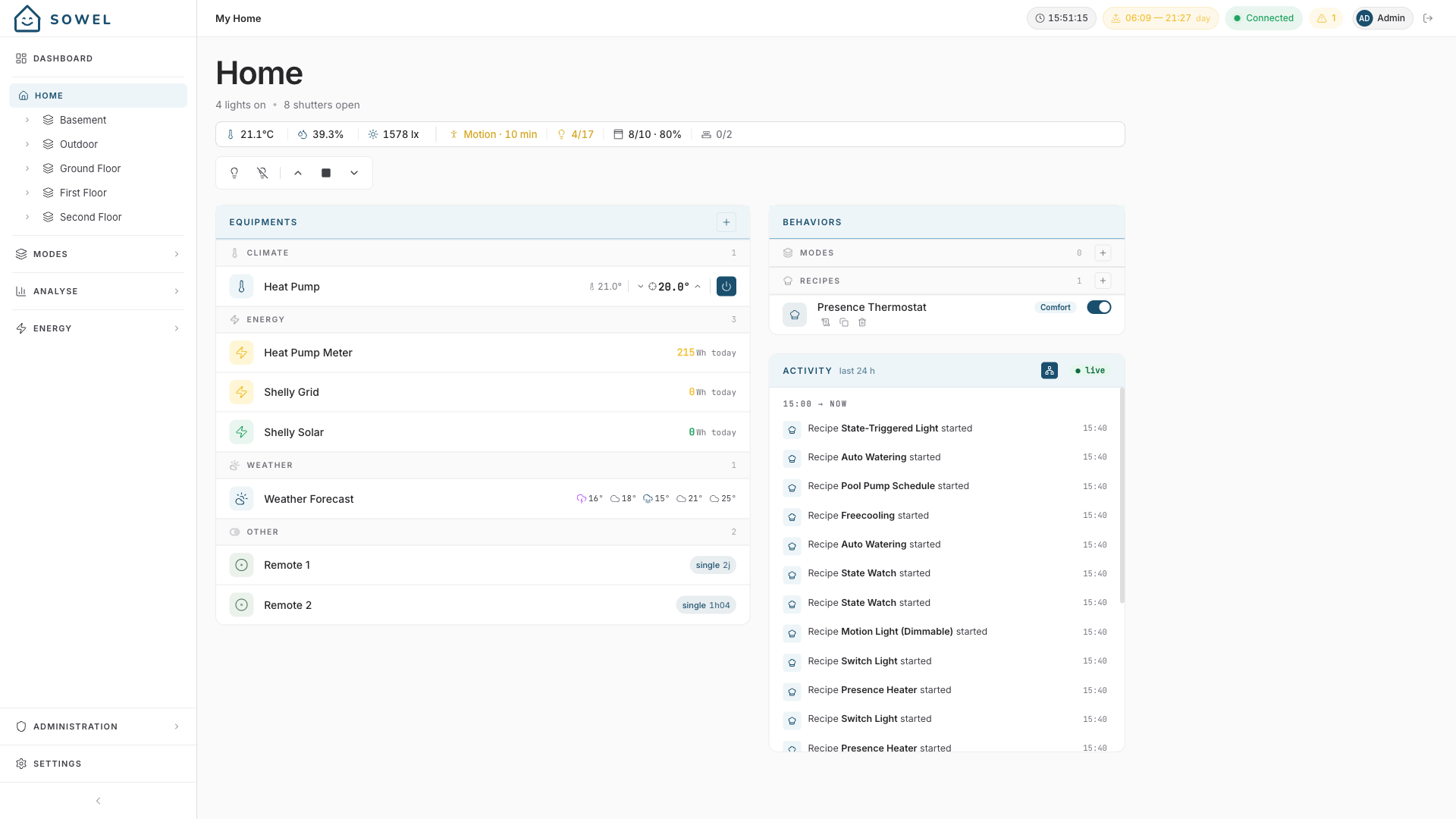
The zone view's Behaviors panel is where you toggle running recipes on the fly without going through the admin. The Activity panel on the right shows each recipe firing in real time.
How recipes interact with modes
Modes can flip recipes on or off as part of a single gesture. When you switch the house to Night, your "Motion Light" recipes can keep running but with the night brightness slot active; your "Auto Watering" can pause; your "Freecooling" can wake up.
A mode impact on a zone can do three things to a recipe instance:
recipe_toggle-- enable or disable the instancerecipe_params-- update its parameters (e.g. switch the brightness target)- nothing -- leave it untouched
This is the glue that lets a recipe template behave differently across day / evening / night without you maintaining three separate instances.
Why a recipe is not a script
In a typical hand-rolled setup, you write rules:
- alias: kitchen_motion_light
  trigger:
    - platform: state
      entity_id: binary_sensor.kitchen_motion
      to: "on"
  action:
    - service: light.turn_on
      target:
        entity_id: light.kitchen_spots
      data:
        brightness_pct: 80
Now multiply this by every room, every time-of-day variation, every "but only if no one is sleeping", every "except during dinner". You end up with hundreds of YAML rules glued together with templates and conditions. Adding a new room means rewriting the rules.
A recipe encodes the complete pattern -- including the edge cases that took the recipe author six months to get right. You set the brightness, the duration, the rooms; the recipe handles the rest. When you add a new room, you create a new instance of the same recipe -- not a new rule to maintain.
What you don't have to think about
Take Motion Light (Dimmable). Out of the box, one recipe handles: multiple PIR sensors aggregated as a single signal, a brightness target that changes by time of day, manual brightness override detection (so dimming the light yourself doesn't get instantly overridden), a lux threshold (so it doesn't turn on at noon), button toggles to force-cancel, and recovery when the bridge reconnects after a Zigbee outage.
You'd have spent a weekend hand-rolling that. The recipe ships with it.
For developers
Want to write your own recipe?
- Recipe Development -- writing a recipe plugin, declaring slots, accessing helpers
- Recipes -- technical reference -- full type signatures (
RecipeDefinition,RecipeInstance,RecipeHelpers) and runtime model - Plugin Development -- how plugins are packaged and distributed